









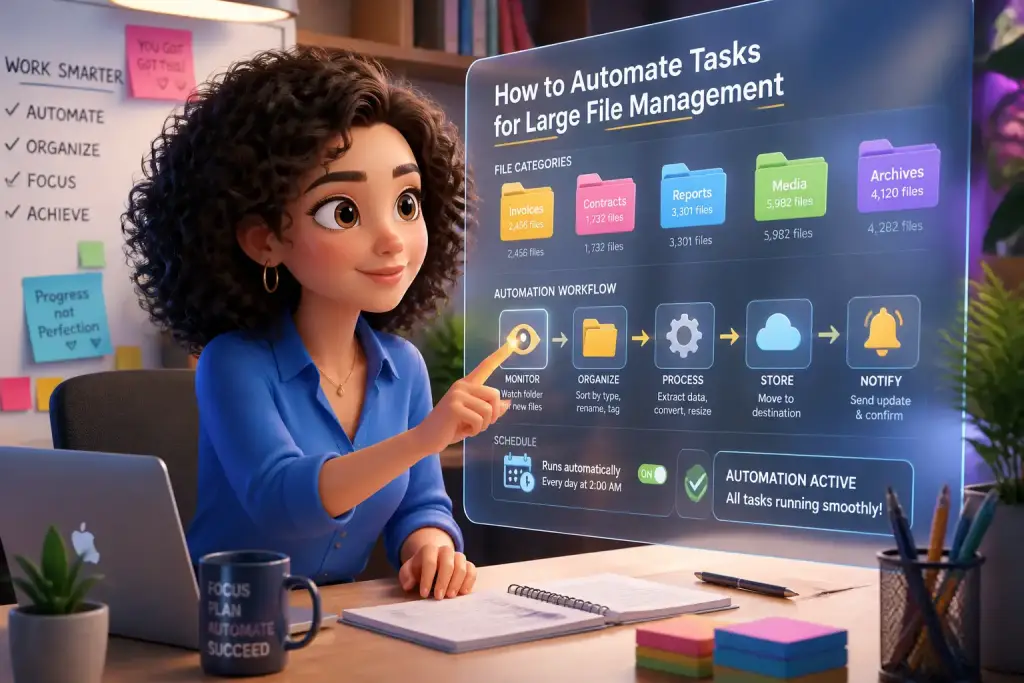
Managing large files efficiently is a challenge many individuals and organizations face today. As digital files grow in size and quantity, traditional methods of handling them become inefficient. Automating tasks for large file management not only saves time but also minimizes errors, enhances collaboration, and improves productivity. This guide will explore practical steps to automate your file management processes effectively, ensuring you can handle even the largest files with ease.
- Automating file organization reduces manual errors and saves time.
- Use cloud services to simplify large file sharing and access.
- Regular audits of file systems enhance efficiency and keep storage optimized.
Table of Contents
Identifying the Need for Automation in File Management
Before implementing automation, understanding the specific challenges you face with large files is crucial. Common issues include slow access times, difficulty in locating files, and the potential for losing important data. Modern tools can address these issues by automating routine tasks, such as file organization, backups, and sharing.
For instance, if your organization regularly handles large files, you might notice that employees spend too much time searching for documents. This time could be better spent on productive tasks. By automating file categorization and storage, you can create a more efficient workflow. Tools like metadata tagging and automated filing systems can help streamline this process.
Another area where automation shines is in data backups. Large files can take up significant storage space and require regular backups. Automating these backups ensures that your data remains secure without requiring constant manual intervention. With cloud storage solutions, setting up scheduled backups is often as simple as a few clicks.
Choosing the Right Tools for Automation
Selecting the right tools is essential for successful automation. Many software options are available that cater specifically to large file management. Consider tools that integrate well with your existing systems and offer features tailored to your needs.
Popular options include:
- Cloud Storage Solutions: Services like Google Drive, Dropbox, and Microsoft OneDrive offer automatic syncing and easy sharing of large files.
- File Management Software: Applications such as FileBot or Tabbles can help automate file organization through tagging and smart folders.
- Backup Solutions: Programs like Acronis or Backblaze provide automated backup options that ensure your files are regularly saved without manual effort.
When choosing a tool, consider the following factors:
- Compatibility with operating systems and other software.
- User-friendliness and ease of setup.
- Support for automation features, such as scripting or scheduling tasks.
Each tool has its strengths, so testing a few options through free trials can help you find the best fit for your organization.
Setting Up Automated Processes
Once you have selected the appropriate tools, the next step is to set up automated processes effectively. Start by defining the tasks you want to automate. Common tasks include file sorting, backups, and sharing files with team members.
For instance, if you want to automate file sorting, you can use scripts or built-in features of your selected software. Create rules based on file types, dates, or keywords to automatically sort files into designated folders. This setup can save time and reduce frustration, especially when dealing with large volumes of documents.
Consider the following steps for setting up automation:
- Identify repetitive tasks that consume significant time.
- Choose the automation method, such as scripts, workflows, or built-in features.
- Test the automation on a small scale to ensure it works as intended.
- Gradually implement the automation across your organization.
Keeping an eye on the automation’s performance is essential. Regularly review the processes to ensure they meet your evolving needs. If you notice inefficiencies, adjust the automation rules accordingly.
Streamlining Collaboration with Automated File Sharing
Collaboration often requires sharing large files among team members. Automating this process simplifies communication and ensures everyone has access to the latest versions of important documents. Tools that offer automated sharing features can send notifications or links to files as soon as they are updated.
For example, using Google Drive, you can set up shared folders where all team members can access files. Whenever someone uploads a new document or makes changes, automatic notifications can alert team members. This keeps everyone informed and reduces the chances of working with outdated files.
Consider these practical strategies for streamlining collaboration:
- Utilize cloud storage with built-in sharing capabilities.
- Set automatic reminders for team members to review or update files.
- Establish clear naming conventions to avoid confusion about file versions.
By automating file sharing, your team can focus on their work instead of managing file transfers. This not only improves productivity but also enhances communication and collaboration.
Regular Maintenance and Optimization of Automated Systems
Automation is not a set-it-and-forget-it solution. Regular maintenance is vital to ensure your systems remain efficient and effective. Over time, file structures can become cluttered, and old files may pile up, leading to inefficiencies.
Conducting regular audits of your automated systems can help identify areas for improvement. For example, if certain automated processes are not being used, consider revising or disabling them. Similarly, ensure that backup systems are functioning correctly and that files are being stored optimally.
Here are some best practices for maintaining your automated systems:
- Schedule regular audits of file management processes.
- Review file storage limits and upgrade as necessary to avoid slowdowns.
- Ensure that all team members are trained on using the automation tools effectively.
Maintaining an organized file system not only helps in managing large files but also enhances overall productivity. Keeping your automated systems updated ensures that you are always ready to handle new challenges as they arise.
Regularly review and update automation processes to adapt to changing needs and improve efficiency over time.
Evaluating the Impact of Automation on File Management
After implementing automated systems, evaluating their impact is crucial. Assess whether automation has met your initial goals, such as reducing time spent on manual tasks or improving access to files. Tracking key metrics can help measure the effectiveness of these changes.
Some metrics to consider include:
- Time saved on file management tasks.
- Reduction in file retrieval times.
- Overall improvement in team productivity and collaboration.
Gathering feedback from team members can also provide insights into how well the automation is working. Encourage open communication about any challenges they face or suggestions for further improvements. This feedback loop is essential for continuous optimization.
In conclusion, the process of automating tasks for large file management can lead to significant improvements in efficiency and productivity. By identifying the right tools, setting up effective processes, and regularly maintaining your systems, you can handle large files with ease.